
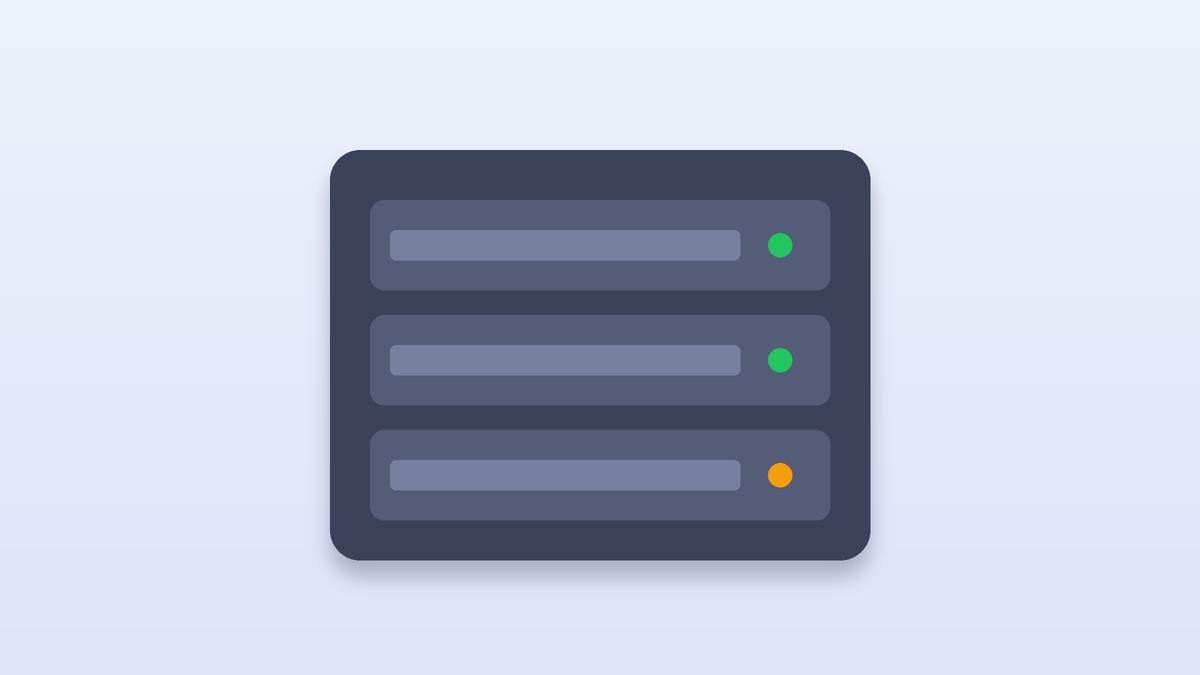
If you have ever asked what is a NAS, the short answer is this: it is a storage device that connects to your home or office network. Instead of saving files only to one computer, you save them to the NAS, and any device on the network can open them. Many NAS devices also back up computers and phones, and some can host media libraries or small websites.
Think of it as a private, shared drive that lives in your home or office rather than on a remote server.
How a NAS works
To understand what is a NAS in practice, start with the hardware. A NAS is a small computer built for storage, and it works as a network storage device rather than a drive attached to one machine. It has one or more drives inside, a processor, memory, and a network connection. You set it up through a web browser or app, create user accounts, and choose which folders to share. Once it connects to your router, computers, phones, and tablets on the same network can reach it.
Network attached storage, which is what most people mean when they ask what is a NAS, is designed for sharing, which is what separates it from a single drive plugged into one machine. Many systems also sync folders automatically, so a file saved on your laptop appears on the device without manual copying.
What a NAS is used for
A home NAS is most useful for keeping documents, photos, and videos in one place that everyone can reach. It can also back up several computers on a schedule. A nas for media server setup stores movies and music and streams them to TVs and other devices. A nas for home office use keeps work files separate from personal ones, and a shared storage for home setup works well when several people use the same network.
Some systems can even record video from security cameras, which is a practical use for a file server at home. Some readers also ask what is a network attached storage device in plain terms: it is simply a storage box that every device on the network can reach.
NAS vs. external hard drive
When you decide what is a NAS worth buying, compare it with the simpler option first.
People often compare nas vs external hard drive options. An external drive connects to one computer at a time, which is simple and cheap. A NAS connects to the whole network, so every device can reach it. An external drive is easy to forget to back up, while a NAS can run backups on a schedule. The trade-off is cost and setup time.
NAS vs. cloud storage
Cloud storage keeps files on servers run by a provider, and you access them over the internet. A NAS keeps files at your location. Cloud storage is easier to set up and works from anywhere, but it carries monthly fees for large amounts of data. A NAS gives you more control over where your data lives, though you are responsible for maintaining it.
Many people use both. The NAS holds local copies, and cloud storage keeps an offsite copy in case of fire, theft, or hardware failure.
Who needs a NAS?
A NAS is most useful for households with several computers and phones and a large photo or video library, for small offices that share files between employees, and for anyone who wants automatic backups without relying on a cloud provider. If you only have one computer and a few files, an external drive or cloud backup may be enough.
If you are looking for the best NAS for home use, and you want to know what is a NAS that fits a family, the number of users and the size of your data matter more than the brand. A small household may be well served by a two-bay system, while a family with years of photos may want more capacity.
Key features to check
Look at the number of drive bays, since more bays allow more storage and redundancy. Check RAID support, which combines drives so one failure doesn't lose data. Confirm that the manufacturer provides regular software updates. Review the remote access options, and choose a system with clear setup guides if you are not technical.
Choosing drives
The drives you put in a NAS decide much of its speed and capacity, so think about them before you think about the case.
Most NAS devices accept standard hard drives or solid-state drives. Hard drives offer more storage for the money, while solid-state drives are faster and quieter. Use drives designed for continuous network use if the NAS will run all day. Check nas drives for compatibility with your model before you buy, and avoid mixing very different drives in one array.
Planning storage capacity
Estimate how much space you need, then add room for growth. Photo libraries and video grow faster than most people expect. Redundancy reduces usable space, so calculate the usable capacity rather than the total of all drives.
Security basics for a NAS
Anyone asking what is a NAS should also ask how to keep it safe. Strong access controls matter more than the hardware.
A NAS is a network device, so it needs protection. Change the default passwords right after setup, and use a strong, unique password for each user account. Turn on two-step verification if the system supports it, and install updates as soon as they arrive. Limit remote access, and keep the device off the public internet unless you have a clear reason to expose it.
Good nas security also means limiting which folders each user can open. The Cybersecurity and Infrastructure Security Agency publishes guidance on protecting networked devices and accounts.
RAID is not a backup
RAID keeps the system running if one drive fails, but it doesn't protect against accidental deletion, ransomware, or a fire. A proper nas backup plan keeps a separate copy of important files, either on another device or in cloud storage. This is the most common mistake people make with a NAS.
Backups that you can rely on
A practical nas backup strategy follows the 3-2-1 idea: keep three copies of important data, on two types of storage, with one copy offsite. The NAS can hold the primary copy and a local backup, while cloud storage or an external drive stored elsewhere provides the offsite copy. Test a restore from time to time, because a backup you have never restored may fail when you need it.
Setting up a NAS step by step
A good nas storage setup starts with the drives and ends with a tested backup. Once you know what is a NAS and why you want one, the setup is a matter of following the steps below.
Follow a clear nas setup guide from the manufacturer. Install the drives, connect the NAS to your router with a network cable for the best speed, and set up the administrator account. Create user accounts and shared folders with the right permissions. Then install backup software on your computers, schedule regular backups, and test a file restore.
Maintenance schedule
A NAS needs regular attention, much like a car. Check for software updates monthly, review drive health reports, and confirm that scheduled backups completed. Replace drives that report errors before they fail. Keep the device in a cool, ventilated place with a stable power connection, ideally behind a surge protector or uninterruptible power supply.
Using a NAS for media
A nas for media server setup organizes your movies, music, and photos and streams them to TVs and phones. Only store media you have the right to use. For smooth playback, connect the NAS to the router with a cable rather than relying on Wi-Fi.
Common mistakes
Treating RAID as a backup is the most common error. Leaving default passwords in place is another, and exposing the NAS to the internet without care is a third. Ignoring drive health warnings is also risky, because those alerts are early signs of trouble.
Frequently asked questions
Is a NAS the same as a server? A NAS is a specialized storage device. A server can handle many other tasks and usually needs more technical management.
Do I need a NAS if I already use cloud storage? Not necessarily. Cloud services may meet your needs, and a NAS adds local control and an extra backup option.
How long do drives last in a NAS? Lifespan varies with use and heat. Monitor drive health and replace drives that show warnings.
Can I access a NAS from outside my home? Yes, but it increases security risk. Use secure access methods and keep the software updated.